 MCP
MCPHoneyLink MCP
เชื่อมต่อ Claude และ ChatGPT เข้ากับบัญชี HoneyLink ของคุณโดยตรง เพื่อให้ผู้ช่วย AI สร้างและจัดการ Shorten Link แทนคุณได้ ผ่านมาตรฐาน Model Context Protocol (MCP)
MCP คืออะไร?
Model Context Protocol (MCP) คือมาตรฐานเปิดที่ช่วยให้ผู้ช่วย AI อย่าง Claude และ ChatGPT เชื่อมต่อกับเครื่องมือและบริการภายนอกได้อย่างปลอดภัย เช่น HoneyLink และสามารถลงมือทำสิ่งต่าง ๆ แทนคุณได้จริง ลองนึกภาพว่ามันเป็นภาษากลางที่ทำให้ผู้ช่วย AI ของคุณ "เสียบปลั๊ก" เข้ากับ HoneyLink เพื่อเพิ่มความสามารถในการจัดการข้อมูลที่คุณอนุญาตได้
คุณเป็นผู้กำหนดสิทธิ์การใช้งานให้กับ AI
การเชื่อมต่อผู้ช่วย AI กับ HoneyLink ใช้ระบบเข้าสู่ระบบและสิทธิ์การเข้าถึงเดียวกันกับแดชบอร์ด คุณจะเห็นและตรวจสอบได้ว่าผู้ช่วยกำลังขอสิทธิ์อะไรบ้างก่อนอนุมัติทุกครั้ง และสามารถยกเลิกการเชื่อมต่อได้ตลอดเวลา จะไม่มีสิ่งใดเกิดขึ้นในบัญชีของคุณโดยที่คุณไม่ได้อนุญาต
ทำไมควรเชื่อมต่อผู้ช่วย AI
เมื่อเชื่อมต่อแล้ว คุณสามารถให้ Claude หรือ ChatGPT จัดการ Shorten Link ของคุณด้วยภาษาพูดธรรมดา แทนที่จะต้องสลับไปเปิดแดชบอร์ดทุกครั้งสำหรับงานเล็ก ๆ น้อย ๆ
สร้าง Shorten Link ได้โดยไม่ต้องออกจากบทสนทนา: ให้ผู้ช่วยของคุณย่อ URL สำหรับ Project และ Campaign ที่ต้องการ โดยจัดการรายละเอียดให้เอง
ค้นหาข้อมูลได้เร็วขึ้น: ให้ผู้ช่วยค้นหา Project, Campaign หรือ Label ที่มีอยู่แล้วจากชื่อ แทนที่จะค้นหาในแดชบอร์ดด้วยตัวเอง
ทำงานร่วมกับทีมได้ลื่นไหลขึ้น: ให้ผู้ช่วยอัปเดต Shorten Link หรือเชิญเพื่อนร่วมทีมเข้าร่วม Project ระหว่างที่กำลังช่วยคุณทำงานอื่นอยู่
ผู้ช่วย AI ของคุณทำอะไรได้บ้าง
เมื่อคุณเชื่อมต่อและอนุมัติสิทธิ์การเข้าถึงแล้ว ผู้ช่วย AI ของคุณสามารถทำสิ่งต่อไปนี้แทนคุณได้:
- สร้าง Shorten Link ใหม่
- แก้ไข Shorten Link ของคุณ
- ดู Project, Campaign, Label และ Shorten Link ที่มีอยู่ของคุณ
- เพิ่มสมาชิกเข้า Project ของคุณ
ผู้ช่วยของคุณทำได้เพียงเท่าที่สิทธิ์ในบัญชีของคุณอนุญาตเท่านั้น ไม่สามารถทำสิ่งใดที่เกินกว่าที่คุณเองจะทำได้ในแดชบอร์ด
ตัวอย่างการใช้งานจริง
ตัวอย่างวิธีที่คนใช้ HoneyLink ผ่านผู้ช่วย AI หลังจากเชื่อมต่อแล้ว

คุณคือ: Influencer หรือคนทำ Affiliate Marketing
ต้องสร้างและย่อ Affiliate Link ของสินค้ายอดนิยมทีละรายการ ทุกวัน
"ช่วยหาสินค้ายอดนิยม 5 อันดับบน [แพลตฟอร์ม] ตอนนี้ ใส่ affiliate ID ของฉัน แล้วย่อลิงก์ทั้ง 5 ด้วย HoneyLink ให้หน่อย"
ได้ Shorten Link ที่ติด affiliate ID เรียบร้อยแล้ว 5 รายการ ในคำขอเดียว
คุณคือ: นักการตลาดออนไลน์ หรือเจ้าของธุรกิจ SME
ต้องทำ Campaign การตลาดในหลากหลายช่องทาง พร้อมติด UTM source เพื่อวัดผล
"ใช้ HoneyLink MCP สร้าง Shorten Link สำหรับ Campaign ลดราคาช่วงวัน 11.11 Instagram, Facebook และอีเมล พร้อมติด UTM source ให้ถูกต้องในแต่ละลิงก์"
ได้ Shorten Link พร้อมใช้งาน 3 ช่องทาง ติด UTM ถูกต้องครบ โดยไม่ต้องเปิดแดชบอร์ดเลย
วิธีเชื่อมต่อ
ขั้นตอนการตั้งค่าคล้ายกันทั้งบน Claude และ ChatGPT คือระบุที่อยู่ของ MCP server ของ HoneyLink ให้แอป จากนั้นเข้าสู่ระบบและอนุมัติสิทธิ์ที่ขอมา ข้ามไปยังผู้ช่วยของคุณได้เลย:
หากบัญชี HoneyLink หรือผู้ช่วย AI ของคุณอยู่ภายใต้การดูแลขององค์กรหรือ workspace คุณอาจไม่เห็นตัวเลือกให้เพิ่ม connector ใหม่ด้วยตัวเอง เนื่องจากบางแพลตฟอร์มจำกัดสิทธิ์นี้ไว้ให้เฉพาะแอดมินของ workspace เท่านั้น หากเป็นเช่นนั้น ให้ติดต่อแอดมินของคุณเพื่อขอให้เพิ่ม HoneyLink โดยใช้ URL ของ server ด้านล่างนี้
URL ของ HoneyLink MCP server
https://hny.link/api/mcpเชื่อมต่อบน Claude Desktop
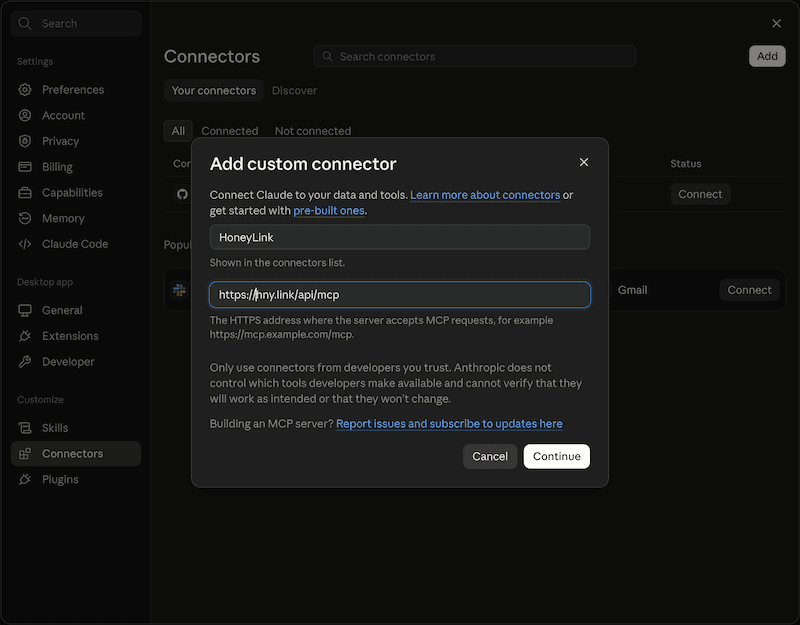
- เปิด Claude Desktop แล้วไปที่ Settings จากนั้นเลือก Connectors
- เลือก "Add custom connector"
- ใส่ URL ของ HoneyLink MCP server ตามที่แสดงด้านบน
- ตั้งชื่อ connector เช่น "HoneyLink" แล้วบันทึก
- Claude จะตรวจสอบการเชื่อมต่อ แล้วแสดงข้อมูล Authentication และ OAuth client สามารถกด Add ต่อได้เลย
- Claude จะแสดงข้อมูล Connector ได้รับการบันทึก ให้กด Connect
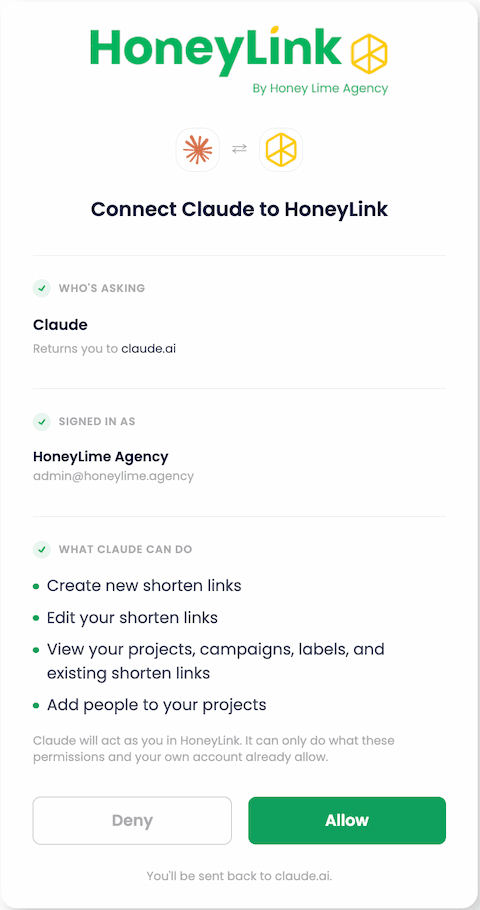
- Claude จะเปิดหน้าเว็บไซต์และขอให้คุณเข้าสู่ระบบบัญชี HoneyLink ของคุณ
- ตรวจสอบสิทธิ์ที่ Claude ร้องขอ แล้วเลือก "Allow" เพื่อเชื่อมต่อให้เสร็จสมบูรณ์
เชื่อมต่อบน ChatGPT Desktop
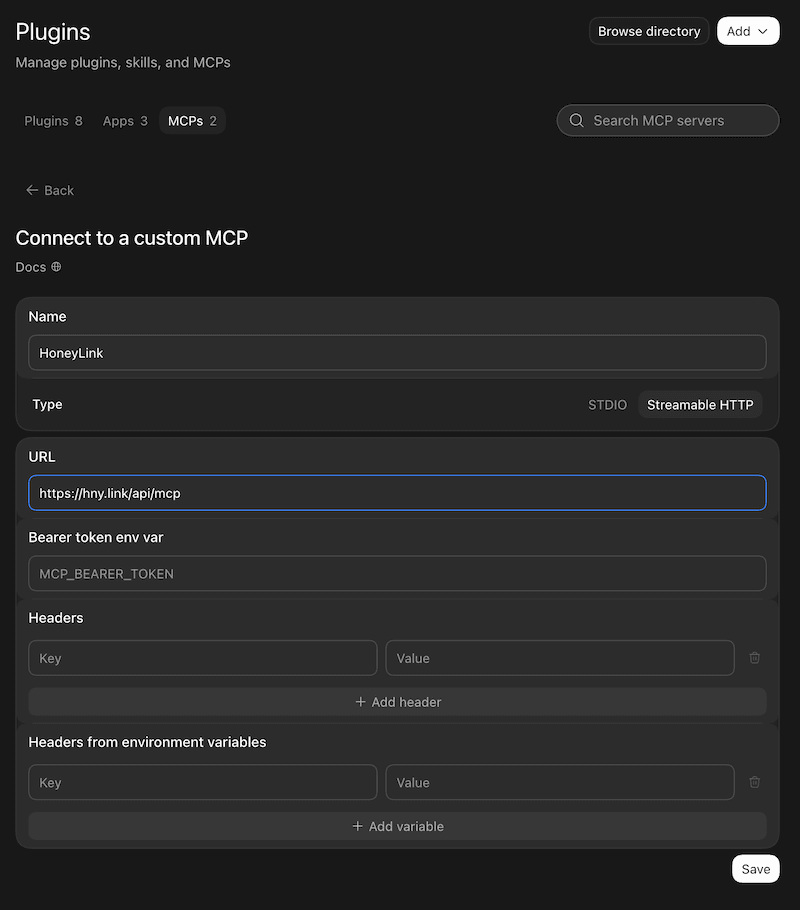
- เปิด ChatGPT แล้วไปที่ Settings จากนั้นเลือก Plugins
- ที่เมนูขวาบน เลือกเพิ่ม MCP Server ใหม่
- ตั้งชื่อ MCP เป็น "HoneyLink" แล้วเลือกประเภทเป็น Streamable HTTP
- ใส่ URL ของ HoneyLink MCP server ตามที่แสดงด้านบนแล้วกดบันทึก
- ChatGPT จะแสดงข้อมูล Connector ได้รับการบันทึก ให้กด Authenticate
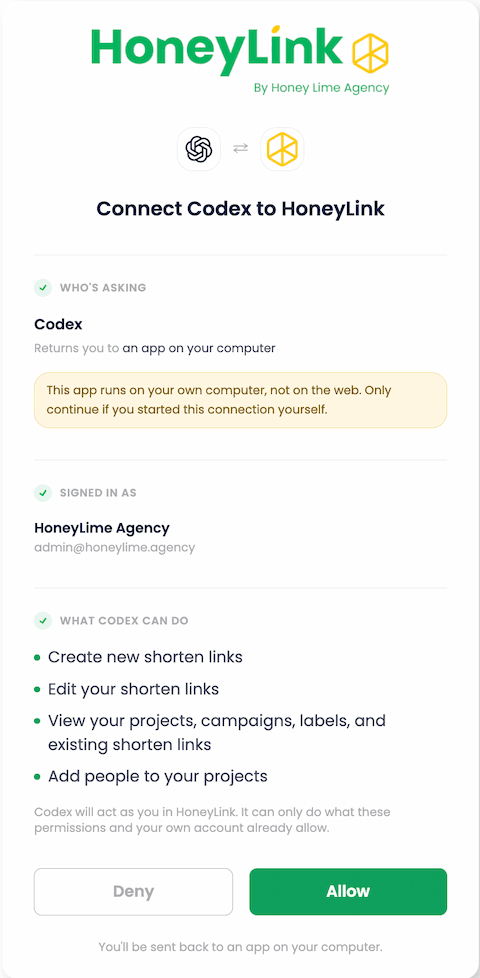
- ChatGPT จะเปิดหน้าเว็บไซต์และขอให้คุณเข้าสู่ระบบบัญชี HoneyLink ของคุณ
- ตรวจสอบสิทธิ์ที่ ChatGPT ร้องขอ แล้วเลือก "Allow" เพื่อเชื่อมต่อให้เสร็จสมบูรณ์
รายละเอียดเชิงเทคนิค
ข้อมูลด้านล่างจะอธิบายถึงหลักการทำงานของ HoneyLink MCP ประกอบไปด้วยระบบ OAuth และรายการของ MCP Tools ที่เปิดให้ AI สามารถเข้ามาใช้งานได้ในขณะนี้
ระบบยืนยันตัวตนทำงานอย่างไร
HoneyLink มีระบบ OAuth เป็นของตัวเอง ผู้ช่วย AI จะยืนยันตัวตนกับ HoneyLink โดยตรงด้วยระบบบัญชีเดียวกับที่ใช้ในแดชบอร์ด การเชื่อมต่อใช้ PKCE (Proof Key for Code Exchange) จึงไม่มีการเก็บ client secret ไว้บนอุปกรณ์ของคุณเลย และ access token แต่ละตัวจะถูกจำกัดสิทธิ์ไว้เฉพาะตาม Scope สิ่งที่คุณอนุมัติในหน้าจอยินยอมเท่านั้น
ตั้งค่าอัตโนมัติด้วย Dynamic Client Registration (DCR)
ผู้ช่วย AI ส่วนใหญ่ รวมถึง Claude และ ChatGPT สามารถลงทะเบียนตัวเองกับ HoneyLink ได้อัตโนมัติตั้งแต่การเชื่อมต่อครั้งแรก โดยใช้มาตรฐานที่เรียกว่า Dynamic Client Registration (DCR) นี่คือเหตุผลที่การเชื่อมต่อมักจะเป็นแค่การวาง URL ของ server เท่านั้น เพราะไม่มีขั้นตอนที่ HoneyLink ต้องอนุมัติหรือตั้งค่าผู้ช่วย AI แต่ละตัวล่วงหน้าด้วยตัวเอง
รายการเครื่องมือ MCP ที่มีให้ใช้งาน
เมื่อเชื่อมต่อและอนุมัติสิทธิ์แล้ว ผู้ช่วย AI ของคุณจะเข้าถึงเครื่องมือต่อไปนี้ได้:
Shorten Links
| redirect_rule.create | สร้าง Shorten Link ใหม่ |
| redirect_rule.update | แก้ไข Shorten Link ที่มีอยู่ |
| redirect_rule.list | แสดงรายการ Shorten Link ภายใน Project |
| redirect_rule.generate_short_url | แนะนำ slug ของ short URL ที่ยังว่างอยู่ |
Projects, Campaigns & Labels
| project.list_recent | แสดง Project ที่คุณเพิ่งทำงานด้วยล่าสุด |
| project.list | แสดง Project ทั้งหมดที่คุณมีสิทธิ์เข้าถึง |
| project.detail | ดู Campaign และ Label ของ Project ในคำขอเดียว |
| campaign.list | แสดงรายการ Campaign ภายใน Project |
| label.list | แสดงรายการ Label ภายใน Project |
Team
| project.invite_member | เพิ่มผู้ใช้ HoneyLink ที่มีอยู่แล้วเข้าสู่ Project |
รายการนี้จะเพิ่มขึ้นเรื่อย ๆ ตามฟีเจอร์ของ HoneyLink ที่เปิดให้ใช้งานผ่าน MCP มากขึ้น
คำถามที่พบบ่อย
ต้องมีบัญชี HoneyLink ก่อนไหมถึงจะใช้งานนี้ได้?
ต้องมี การเชื่อมต่อผู้ช่วย AI จะเชื่อมกับบัญชี HoneyLink ที่คุณมีอยู่แล้วเท่านั้น ไม่ได้สร้างบัญชีแยกต่างหากหรือข้ามสิทธิ์ของบัญชีคุณแต่อย่างใด
ยกเลิกการเชื่อมต่อผู้ช่วย AI ภายหลังได้ไหม?
ได้ตลอดเวลา การยกเลิกจะมีผลทันทีและหยุดไม่ให้ผู้ช่วยเรียกใช้งานบัญชีของคุณต่อไปได้
ข้อมูลของฉันถูกแชร์ไปยัง Anthropic หรือ OpenAI หรือไม่?
ผู้ช่วย AI ของคุณจะเห็นเฉพาะข้อมูลที่มันร้องขอผ่าน HoneyLink ระหว่างทำงานที่คุณสั่งเท่านั้น ซึ่งเป็นข้อมูลชุดเดียวกับที่คุณจะเห็นเองในแดชบอร์ดสำหรับ Project นั้น
รองรับผู้ช่วย AI ตัวไหนบ้าง?
ปัจจุบันรองรับ Claude และ ChatGPT โดยใช้มาตรฐาน MCP แบบเปิดเดียวกัน และอาจรองรับผู้ช่วยที่ใช้ MCP ตัวอื่นเพิ่มเติมในอนาคต